Key takeaways
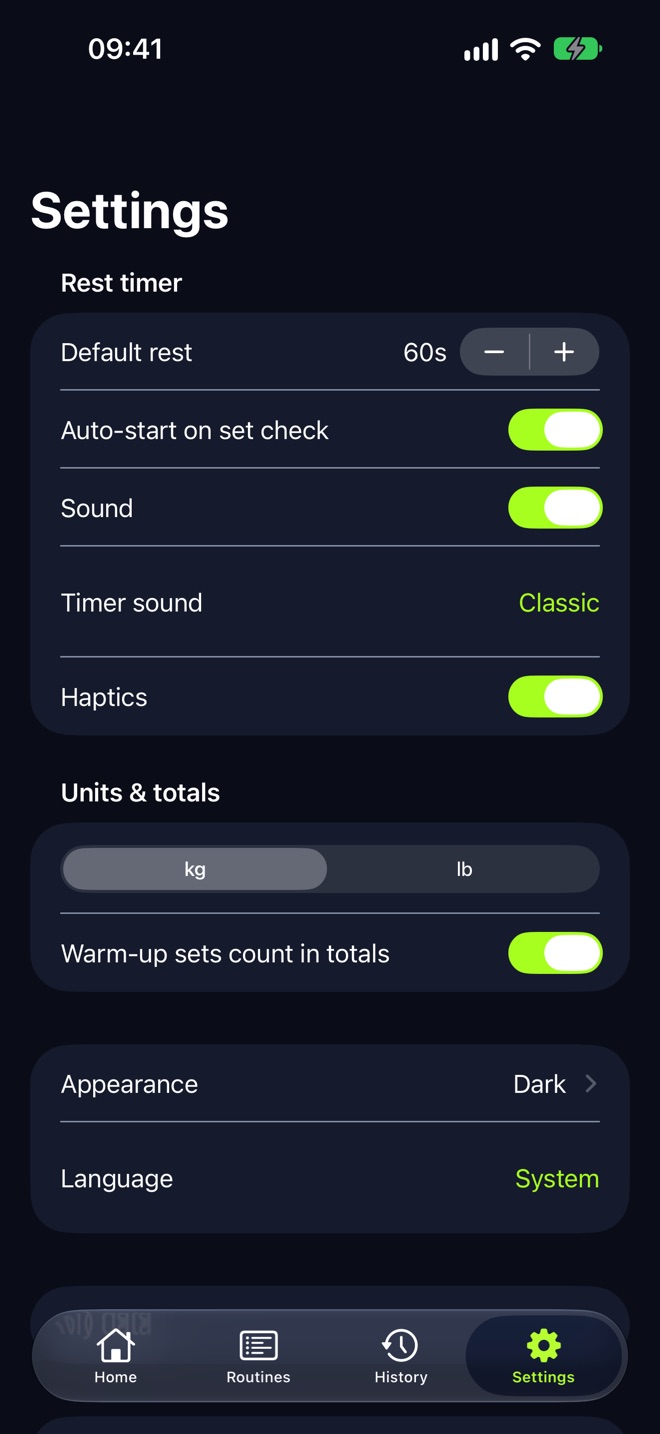
- 01Settings → Rest timer: Default rest, Auto-start on set check, Sound, Timer sound, Haptics.
- 02Default rest is 60s; range 15s to 600s in 15-second steps.
- 03Pick a length in the timer sheet mid-workout and that exercise remembers it.
- 04Rest alerts need notification permission: Rest timer sheet → Rest alerts → Turn on.
On this page
Open Settings and use the Rest timer section for the defaults. To change the rest for one exercise, open the rest timer sheet during the workout and pick a length: that exercise remembers it.
Checked against LiftLoggr 1.5.2 for iPhone.
Change the defaults
- Tap the Settings tab.
- Under Rest timer, use − and + on Default rest. It moves in 15-second steps from 15s to 600s (10 minutes). The default is 60s.
- Auto-start on set check (on by default): checking a set starts the countdown.
- Sound (on by default) and Timer sound: Classic, Forge, Plate or Bell. Picking one plays it.
- Haptics (on by default): a vibration when rest ends.
The default rest applies to every exercise that has no remembered length of its own.
Set a rest length per exercise
- During a workout, check a set of the exercise.
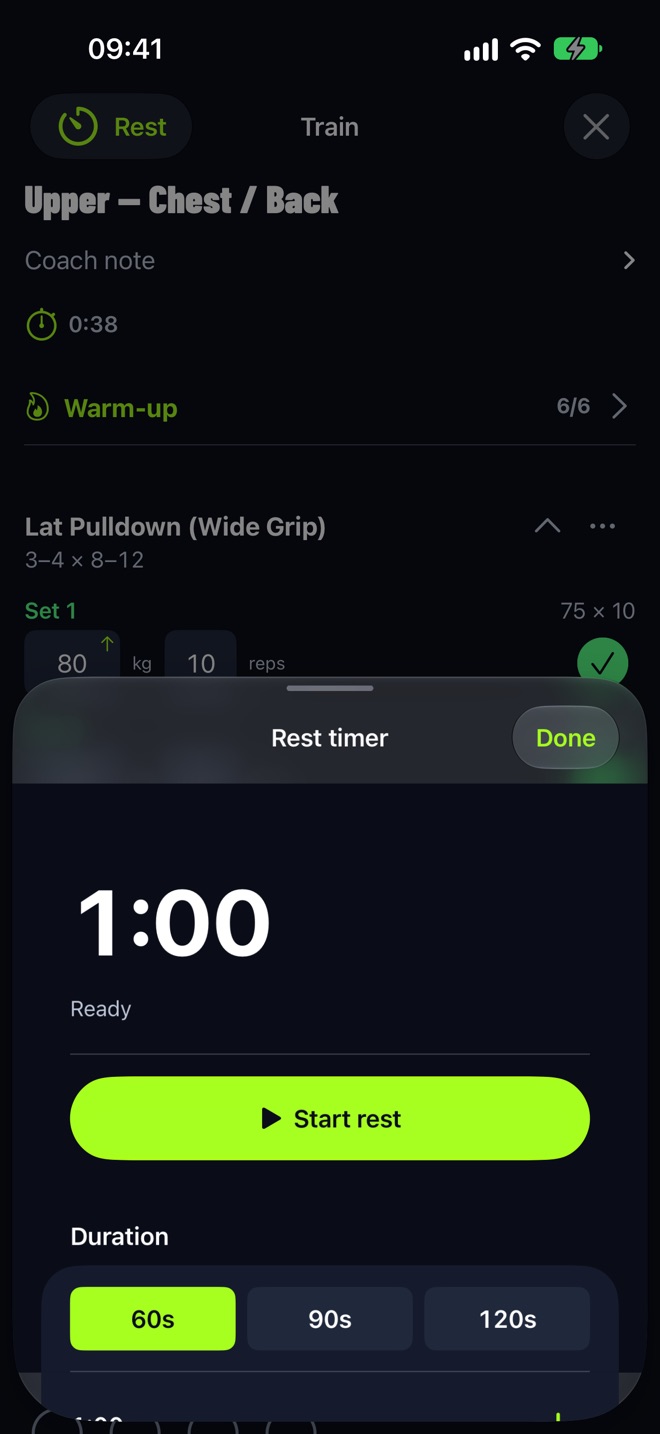
- Tap Rest (the timer button at the top of the Train screen; it shows the countdown while running).
- In the sheet, tap 60s, 90s or 120s, or use − and + to move in 15-second steps.
- That length is saved for the exercise you just checked. If you haven’t checked a set yet, it’s saved for the next exercise to log. It also becomes the new Default rest for exercises without a length of their own.
Next time you check a set of that exercise, the timer uses its remembered length. Remembered lengths travel in JSON backups.
Turn on rest alerts
The countdown also runs on the Lock Screen and Apple Watch, but an alert needs notification permission.
- Open the rest timer sheet (tap Rest).
- Find Rest alerts at the bottom.
- Tap Turn on and allow notifications. If it shows Open Settings, notifications were declined before: allow them for LiftLoggr in iOS Settings.
The alert names what’s next, for example “Lat Pulldown is next”, with two actions: Start next set and +30s.
The controls while resting
| Where | Controls |
|---|---|
| Rest timer sheet | Stop, +30s, presets, − / +, Auto-start, Sound |
| Lock Screen and Dynamic Island | Skip, +30s; Check next set when not resting |
| Apple Watch | +30s, Skip, a wrist tap at zero |
| Siri | “Add time to my rest in LiftLoggr”, “Skip my rest in LiftLoggr” |
When rest doesn’t start
- Before a drop set: checking a set whose next set is an unchecked drop set skips the rest. See log a drop set.
- Inside a superset: rest starts only when every exercise in the round is checked. See log a superset.
- Auto-start is off: start rest by hand from the sheet.
How long to rest for strength or size: rest between sets.
Questions
How do I give squats a longer rest than curls?
During the workout, check a squat set, open the rest timer sheet and pick the length (for example 120s, or use + to go higher). Squats keep that length from then on; curls keep theirs.
Why don't I get an alert when rest ends?
Notifications are off for LiftLoggr. Open the rest timer sheet: Rest alerts shows Turn on (tap it) or Open Settings (allow notifications for LiftLoggr in iOS Settings).
Can I stop the timer from starting by itself?
Yes. Turn off Settings → Rest timer → Auto-start on set check, or the Auto-start toggle in the rest timer sheet. Start rest by hand with Rest → Start rest.