
Key takeaways
- 01Export: Settings → My data → Export data → Full backup (JSON) or History (CSV).
- 02Restore: Settings → My data → Import backup → Validate & preview → Merge or Replace.
- 03Or open a backup file from Files and pick LiftLoggr: it merges after you confirm.
- 04CSV is for spreadsheets. Only the JSON backup restores.
On this page
To export, open Settings → My data → Export data and tap Full backup (JSON) or History (CSV). To restore, open Settings → My data → Import backup, paste the backup, tap Validate & preview, then Merge into current data or Replace everything.
Checked against LiftLoggr 1.5.2 for iPhone.
Export
- Tap the Settings tab, then My data.
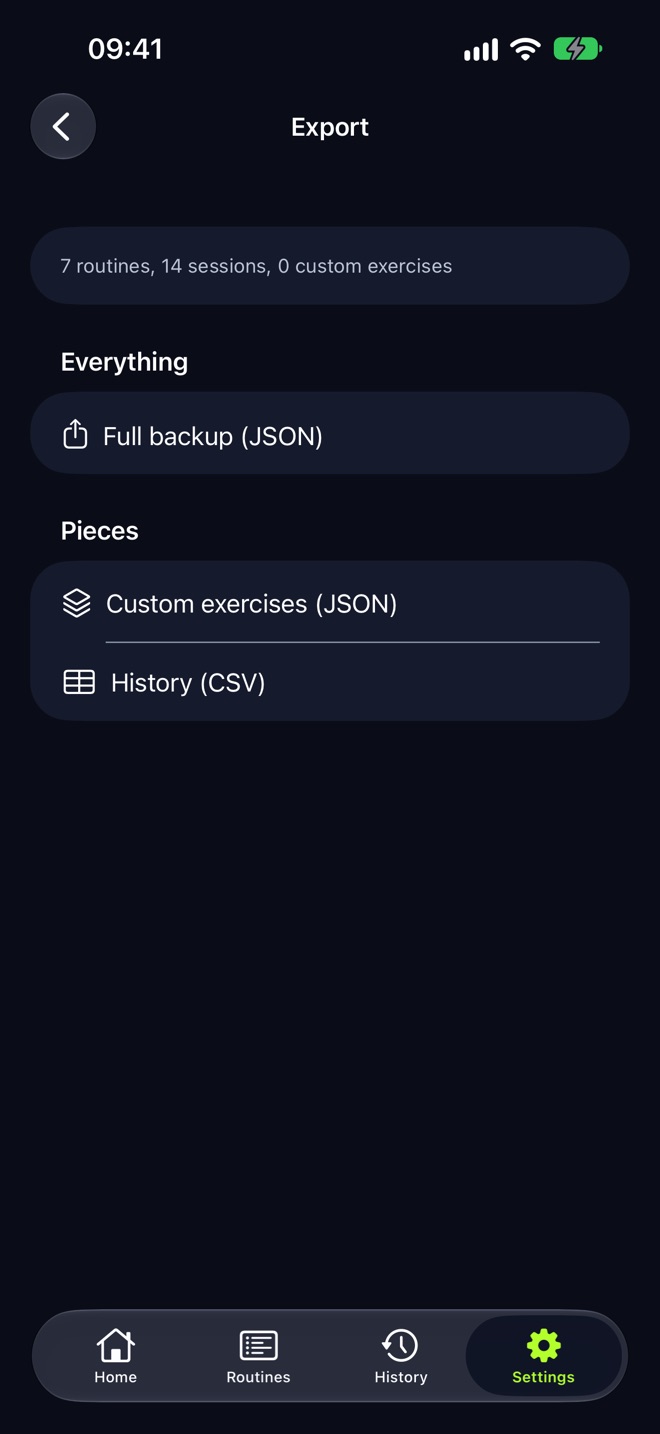
- Under Data, tap Export data. The top line counts what you have, for example “7 routines, 14 sessions, 0 custom exercises”.
- Pick a file:
- Full backup (JSON) saves LiftLoggr-backup.json. Everything needed to rebuild the app.
- History (CSV) saves LiftLoggr-history.csv. One row per set, for spreadsheets.
- Custom exercises (JSON) saves only the exercises you created.
- The share sheet opens. Choose Save to Files, AirDrop, Mail or any app. Saving to Files and AirDrop work offline.
The History CSV columns
| Column | Example | Notes |
|---|---|---|
| date | 2026-10-21T18:35:00Z | ISO 8601 |
| routine | Upper — Chest / Back | Name at the time |
| exercise | Lat Pulldown (Wide Grip) | |
| set | 1 | Position in the exercise |
| weight | 80 | In your current unit |
| unit | kg | kg or lb |
| reps | 10 | |
| is_warmup | false | |
| is_completed | true | false = planned but not checked |
| note | The exercise note | |
| set_type | normal | normal, warmup or drop |
| rir | 2 | Reps in reserve, when logged |
| superset | A | Group letter, when in a superset |
Weights are converted to the unit set in Settings when you export. An exercise logged with no sets gets one row with the set fields empty.
Restore from a backup file (merge)
- Put the .json backup in the Files app (iCloud Drive, On My iPhone, or AirDrop it to the phone).
- Open the file and tap Share, then pick LiftLoggr.
- LiftLoggr shows Import into LiftLoggr? with the file name and a count, for example “2 routines · 14 workout sessions · 0 custom exercises”. Nothing is imported until you confirm.
- Tap Import. “The shared backup and workout history were merged.”
Files up to 5 MB open this way. The same route also accepts routine templates.
Restore by pasting (merge or replace)
- Copy the whole backup JSON to the clipboard.
- Go to Settings → My data → Import backup.
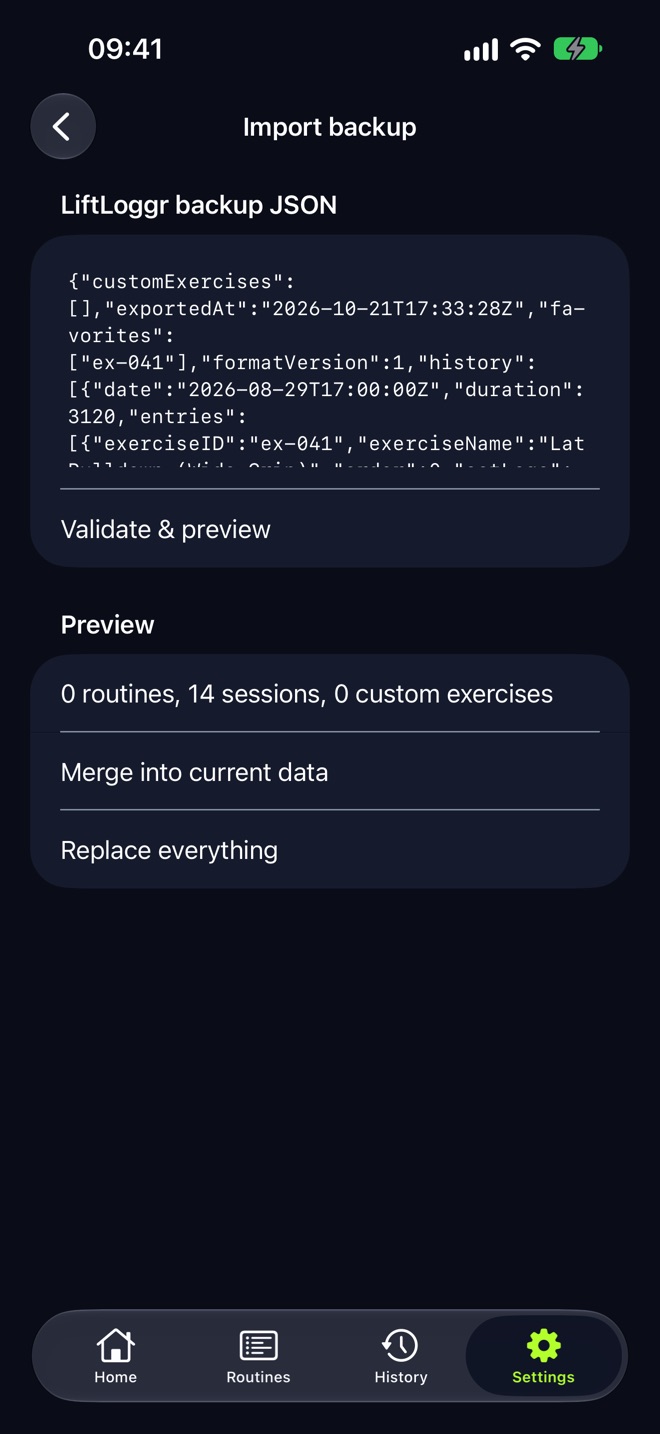
- Paste it into the LiftLoggr backup JSON box.
- Tap Validate & preview. The Preview shows what the backup holds.
- Choose one:
- Merge into current data adds what’s missing and keeps what you have. Items with the same ID are not duplicated.
- Replace everything asks first: “All current routines, history, custom exercises and favorites will be deleted first. This cannot be undone.” Confirm with Replace everything. The result reads “Replaced — the backup is now this device’s data.”
Replace also gives this install a new anonymous usage ID.
Restore on a fresh install
On a new install, the first-run screen Your data is yours. has Restore a backup. It opens the same Import backup screen, and the backup replaces the starter routines.
Which file for which job
| Job | File |
|---|---|
| Move to a new iPhone without iCloud | Full backup (JSON) |
| Keep an archive you control | Full backup (JSON), monthly |
| Charts in Numbers, Excel or Google Sheets | History (CSV) |
| Share your own exercises with a friend | Custom exercises (JSON) |
| Share one routine | The share button on the routine; see import a routine template |
For a copy that updates itself, also turn on iCloud sync. For moving data between apps, read how to export workout data.
Questions
What's in the JSON backup?
Routines, workout history, custom exercises, favorites, remembered rest lengths and settings. Apple Health data is never included.
Can I restore from the CSV?
No. The History CSV is export only, for spreadsheets and other tools. Keep the JSON backup for restoring.
Will merging create duplicate workouts?
No. Every routine, session and custom exercise has a stable ID; merge skips anything already present and adds the rest.
Is export ever locked behind a plan?
No. Export and backup restore stay available whatever your plan, and the paywall itself links to Export my data and Restore a backup.