Key takeaways
- 01Settings → My data → iCloud sync. On by default.
- 02Data goes to your private iCloud database, never to a LiftLoggr server.
- 03Turning sync on or off takes effect the next time LiftLoggr opens.
- 04New iPhone: same Apple Account, install LiftLoggr, open it, wait for the download.
On this page
Turn on Settings → My data → iCloud sync and LiftLoggr keeps a copy of your routines and history in your own private iCloud database. On a new iPhone signed in to the same Apple Account, install LiftLoggr and open it: your data downloads.
Checked against LiftLoggr 1.5.2 for iPhone.
Turn on iCloud sync
- Make sure your iPhone is signed in to iCloud (iOS Settings → your name).
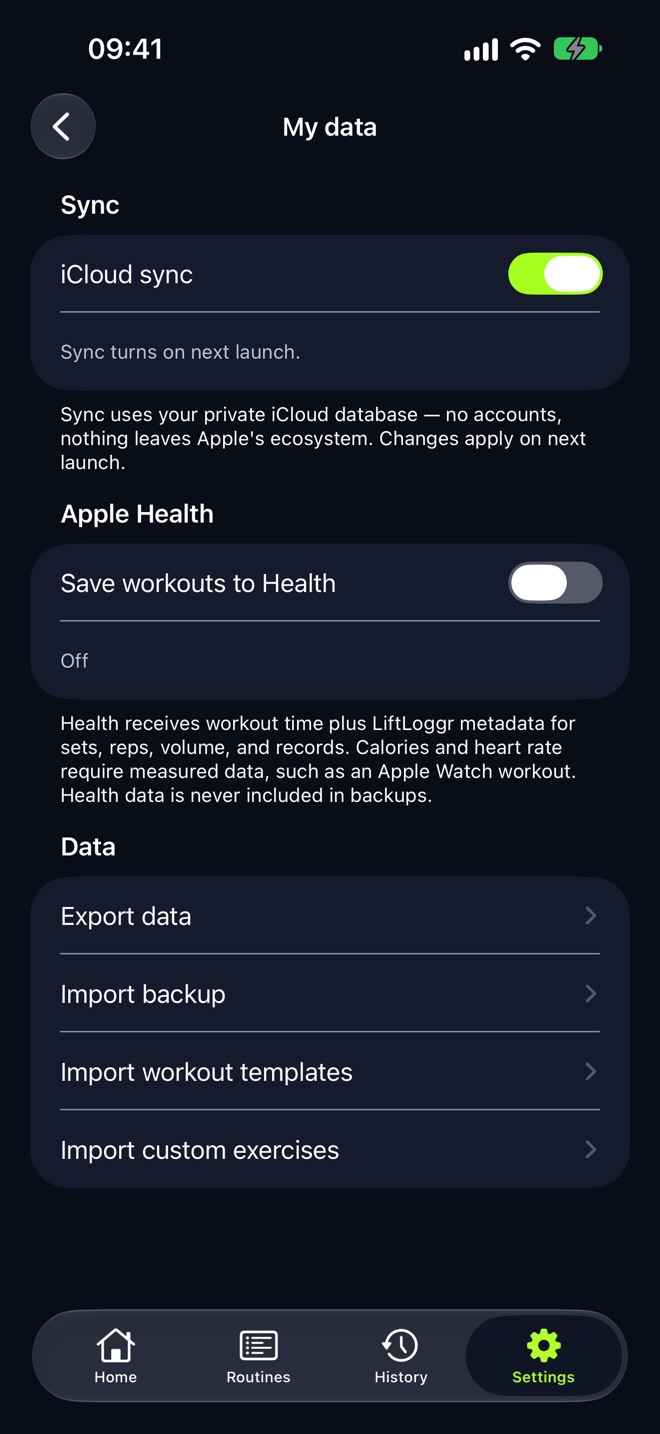
- In LiftLoggr, tap the Settings tab, then My data.
- Under Sync, turn on iCloud sync. It’s on by default on a new install.
- If you just switched it on, the status reads Sync turns on next launch. Swipe LiftLoggr away in the app switcher and open it again.
- Read the status line. iCloud enabled. Waiting for the next transfer., Uploading to iCloud. or Downloading from iCloud. mean it’s working.
Sync uses your private iCloud database: “no accounts, nothing leaves Apple’s ecosystem,” as the footer says. LiftLoggr has no server in between.
Restore on a new iPhone
- Sign in to the new iPhone with the same Apple Account you used before.
- Install LiftLoggr from the App Store and open it.
- Finish the first-run screens. Your synced routines arrive next to whatever starter split you pick; if you pick the same split as before, see “Duplicate starter routines” below.
- Open Settings → My data and check the status line. Downloading from iCloud. means your history is on its way.
- Leave the app open on Wi-Fi until History shows your past sessions. A long history can take a few minutes.
If you have a JSON backup file instead, use Restore a backup on the “Your data is yours.” first-run screen, or export and restore a backup.
Turn sync off
Turn off iCloud sync and reopen LiftLoggr. The status reads Local only. Your data stays on this device. Data already on the iPhone stays there.
Status messages and what to do
| Status | Meaning | Fix |
|---|---|---|
| Sign in to iCloud in device Settings to sync. You can keep logging offline. | No iCloud account on this iPhone | Sign in under iOS Settings → your name |
| iCloud storage is full. Free up space in iCloud Settings. You can keep logging offline. | Your iCloud quota is used up | Free space or change plan in iOS Settings |
| iCloud could not connect. Transfers will retry when available. You can keep logging offline. | No network | Nothing; it retries |
| iCloud access is restricted. You can keep logging offline. | Screen Time or a device profile blocks iCloud | Check Screen Time and device management |
| Sync turns on next launch. | You just changed the toggle | Close and reopen LiftLoggr |
Logging never waits for iCloud. Every set is saved on the iPhone first.
Good to know
- What syncs: routines, workout history, custom exercises, favorites, remembered rest lengths and in-app settings such as units.
- What doesn’t: the Share anonymous usage data choice and the iCloud sync switch itself stay per device. Apple Health data is handled by Apple Health, not by LiftLoggr’s sync.
- Two iPhones: both see the same data. Start a workout on one at a time.
- Duplicate starter routines: if both phones created the starter split before syncing, My data shows “Multiple copies of a starter routine are saved.” Review them in Routines before deleting any copy.
For a file you can keep anywhere, also export a JSON backup now and then. Why both matter: how to export workout data.
Questions
Is iCloud sync a backup?
It keeps a copy of your LiftLoggr data in your private iCloud and on every iPhone signed in to that account, so a lost phone doesn't lose your history. It's still worth exporting a JSON backup now and then: a file you hold is the one copy no sync can change.
Does LiftLoggr need iCloud?
No. With sync off, everything works on the device and the status reads Local only. Your data stays on this device.
Does iCloud sync need internet during my workout?
No. Log as usual. Changes upload when the iPhone has a connection; the status line says so while it waits.
Can someone at LiftLoggr see my synced data?
No. It's stored in your own private iCloud database, which only your Apple Account can read. LiftLoggr has no server and no account.