
Key takeaways
- 01A CSV is for reading: spreadsheets, charts, your coach. A full backup is for restoring.
- 02LiftLoggr exports a one-row-per-set history CSV and a full JSON backup. Neither needs an account.
- 03LiftLoggr restores its own JSON backups. It has no CSV importer, so history from other apps stays in their files.
- 04Strong's CSV can't go back into Strong. Hevy's importer only accepts Strong's CSV.
On this page
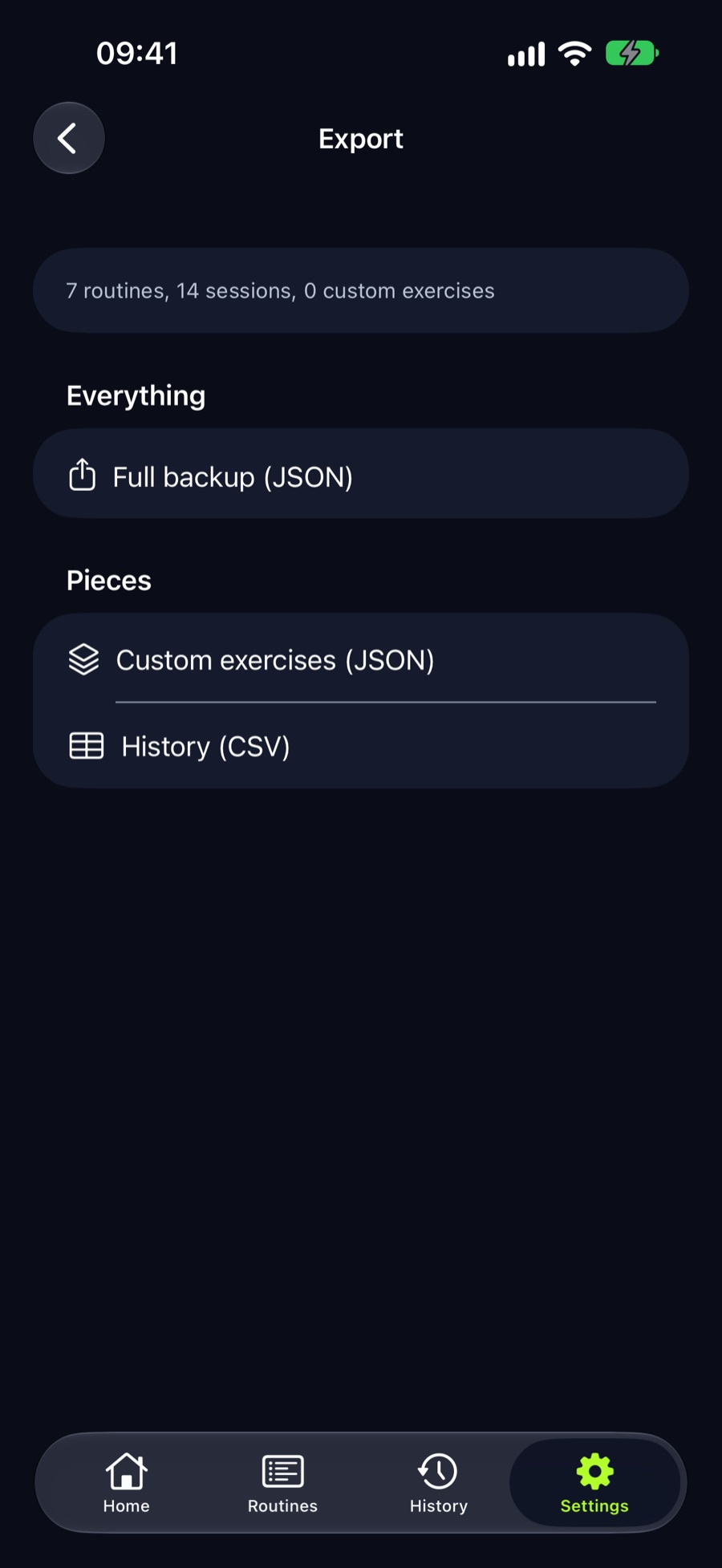
To export workout data, look for two different files: a CSV you can open in a spreadsheet, and a full backup the app can restore. In LiftLoggr both live in Settings → My data → Export data: History (CSV) for reading, Full backup (JSON) for restoring.
Most apps give you the first and call it an export. Only the second one gets your training back after a lost phone. Know which one you have before you need it.
What LiftLoggr exports
| File | Name | What it holds | Can LiftLoggr read it back? |
|---|---|---|---|
| Full backup (JSON) | LiftLoggr-backup.json |
Routines, set targets, warm-ups, superset groups, custom exercises, favourites, rest per exercise, every session, settings | Yes: merge or replace |
| History (CSV) | LiftLoggr-history.csv |
One row per logged set | No. Read-only |
| Custom exercises (JSON) | LiftLoggr-custom-exercises.json |
Your own exercises: name, category, muscle groups, equipment, instructions | Yes: added, never overwrites |
No account, no upload. The file is built on the phone and handed to the share sheet. Apple Health data is never included in backups.
The history CSV, column by column
The header row is fixed and new columns are only ever added at the end:
| Column | Example | Notes |
|---|---|---|
date |
2026-11-12T18:04:31Z |
ISO 8601 in UTC. A late workout can land on the next day in your spreadsheet. |
routine |
Upper A |
The routine name at the time you trained. |
exercise |
Barbell Bench Press |
The name as logged. |
set |
3 |
Position within the exercise, counting warm-ups and drop sets. |
weight |
82.5 |
In your display unit, rounded to 0.1, trailing zeros dropped. |
unit |
kg |
kg or lb, on every row. |
reps |
8 |
Blank if you never entered reps. |
is_warmup |
false |
true for warm-up sets. |
is_completed |
true |
false for planned sets you never checked. |
note |
Paused first rep |
The exercise note, repeated on each of its rows. |
set_type |
normal |
normal, warmup or drop. |
rir |
2 |
Reps in reserve, 0 to 4 (4 means 4 or more). Blank unless you log RIR. |
superset |
A |
The superset letter. Blank when the exercise isn’t in one. |
A real session looks like this:
date,routine,exercise,set,weight,unit,reps,is_warmup,is_completed,note,set_type,rir,superset
2026-11-12T18:04:31Z,Upper A,Barbell Bench Press,1,40,kg,8,true,true,Paused first rep,warmup,,
2026-11-12T18:04:31Z,Upper A,Barbell Bench Press,2,60,kg,5,true,true,Paused first rep,warmup,,
2026-11-12T18:04:31Z,Upper A,Barbell Bench Press,3,82.5,kg,8,false,true,Paused first rep,normal,2,
2026-11-12T18:04:31Z,Upper A,Barbell Bench Press,4,82.5,kg,7,false,true,Paused first rep,normal,1,
2026-11-12T18:04:31Z,Upper A,Barbell Bench Press,5,65,kg,9,false,true,Paused first rep,drop,0,
2026-11-12T18:04:31Z,Upper A,EZ Bar Curl,1,30,kg,10,false,true,,normal,,A
2026-11-12T18:04:31Z,Upper A,Cable Triceps Pushdown (Rope),1,25,kg,12,false,true,,normal,,A
Three things trip people up in a spreadsheet:
- Filter before you sum. Volume should count rows where
is_completedistrue. Dropis_warmup = truetoo, unless you want warm-ups in your totals. - One unit per file. Weights convert to the unit set when you export. Switch to lb, export again, and every weight is in lb. The app stores kilograms underneath, so nothing is lost by switching.
- Dates are UTC. Convert the
datecolumn to your time zone before grouping by day.
The JSON backup
The backup is a versioned file (formatVersion: 1) that keeps every item’s stable ID. That ID is what
makes a merge safe: two real sessions on the same day stay two sessions, because matching never
happens by date and name. Weights are stored in kilograms whatever your display unit.
How to export, step by step
- Open Settings → My data → Export data. The top line counts routines, sessions and custom exercises, so you can see the file isn’t empty.
- Tap Full backup (JSON). Save it to Files, a computer or a cloud drive you control.
- Tap History (CSV) if you want a spreadsheet as well.
- Repeat after any block of training you’d hate to lose. A backup is only as fresh as its date.
Optional iCloud sync, in the same My data screen, keeps a copy in your own private iCloud database. It is sync, not a file you can hold. Keep a JSON backup as well.
Restoring a backup
There are two ways in, and they behave differently:
| Route | How | What happens |
|---|---|---|
| Open the file | Tap the .json in Files or AirDrop it, then choose LiftLoggr |
A sheet shows the counts. Import merges; items with the same ID are kept as they are. |
| Paste it | Settings → My data → Import backup, paste the JSON, Validate & preview | Choose Merge into current data or Replace everything. Replace deletes all routines, history, custom exercises and favourites first, after a confirmation. |
Use merge when moving to a new phone that already has a few workouts. Use replace when you want the phone to match the backup exactly. Replace cannot be undone, so export a fresh backup first.
Export and backup restore are never behind a paywall, whatever happens with a subscription.
What else LiftLoggr imports
- Routine templates (
.liftloggr.json): Settings → My data → Import workout templates, or open the file. Program pages on this site offer them as downloads. - Custom exercises (JSON): Settings → My data → Import custom exercises. Additive only: an exercise with an existing ID or name is skipped, never overwritten.
That is the complete list. LiftLoggr reads no CSV files, so history from another app cannot be loaded into it.
Exporting from other apps
Checked 2026-11-14 against each vendor’s help pages. Menus move between versions; if a path doesn’t match, look for “Export” in the app’s settings.
| App | Where | What you get | Back into the same app? |
|---|---|---|---|
| Strong | iOS: Settings → Export Strong Data. Android: Settings → Export Data. | A spreadsheet-friendly CSV. Single workouts and templates can also be shared as links. | No. Strong’s help centre says exported files can’t be imported back into Strong. |
| Hevy | Profile → Settings → Export & Import Data → Export Data → Export Workouts or Export Measurements | A file for a coach or a spreadsheet. The help article doesn’t name the format. | Hevy’s importer only takes Strong’s CSV, in English and in kg. |
| JEFIT | On the web: jefit.com → Settings → Data Controls → Export Data | Your training data, in every account, per JEFIT’s FAQ | Not stated in the FAQ |
| Fitbod | Not documented in Fitbod’s help centre | A third-party reader, FitData, describes Settings → Export Workout Data → a CSV file. Unofficial. | Not documented |
| Apple Health | Health → Summary → your picture → Export All Health Data | Everything in Health, in XML | Not a restore path for a lifting app |
Sources: Strong, Hevy, JEFIT, FitData README and Apple. We searched all 99 English articles in Fitbod’s help centre on 2026-11-14 and found none on exporting history; its data page notes that deleting your account deletes all data tied to it.
Apple Health is not your lifting log
An Apple Health export is useful, but it won’t hold your sets. Lifting apps write a workout with a start, an end and some totals. LiftLoggr writes each finished session as a Traditional Strength Training workout carrying the routine name, sets completed, reps completed, volume and new records as metadata. Weights per set stay in LiftLoggr, so the LiftLoggr backup is the file that matters.
Switching apps without losing your history
There is no clean way to move years of sets between most apps, and anyone who promises one is reformatting CSVs behind the scenes. The honest route:
- Export everything from the old app and keep the file somewhere dated:
2026-11-14-strong-export.csv. That file is your archive. It will open in a spreadsheet in twenty years. - Write down your current working weights for the main lifts: last top set, reps, and how hard it felt. Five lines on a note is enough.
- Rebuild your routines in the new app, or import a routine template if the new app takes one.
- Log the first two weeks carefully. In LiftLoggr, last time’s weight and reps appear beside each set from the second session on, and double progression starts suggesting weights from there.
- Keep the old app’s records page as a screenshot if PRs matter to you. They won’t carry over.
Mistakes that cost lifters their history
- Treating sync as a backup. Sync copies a deletion just as faithfully as a set. A dated file on a drive you control is a backup.
- Editing the export and expecting it to import. Hevy’s help centre says only a direct Strong export is supported. Re-saving in a spreadsheet changes delimiters and decimal commas.
- Exporting once. A backup from March doesn’t hold April. Export after every block, or monthly.
- Exporting in the wrong unit. Pick kg or lb before you export the CSV, and keep it that way for files you plan to compare.
- Deleting the old app first. Fitbod’s own help page warns that deleting the app deletes the data saved on the device. Export, open the file, check it, then delete.
Questions
Can I export my workouts from LiftLoggr to Excel or Google Sheets?
Yes. Settings, My data, Export data, History (CSV). The file has one row per set with date, routine, exercise, weight, unit, reps, warm-up flag, set type, reps in reserve and superset letter. Excel, Numbers and Google Sheets open it directly.
Can I bring my Strong or Hevy history into LiftLoggr?
No. LiftLoggr has no CSV importer of any kind. It restores its own JSON backups and imports routine templates and custom exercises as JSON. Keep your old app's CSV as an archive and start logging fresh; LiftLoggr builds its last-time numbers from your first session.
What is the difference between the CSV and the JSON backup?
The CSV is a flat history for reading. The JSON backup holds everything needed to rebuild the app: routines, set targets, warm-ups, supersets, custom exercises, favourites, per-exercise rest times, history and settings. Only the JSON can be restored.
Does exporting need an account or a subscription?
No account exists to sign in to. Export and backup restore are never behind a paywall, whatever your LiftLoggr Pro status.
Is my Apple Health export a backup of my lifting?
No. LiftLoggr writes each session to Apple Health as a Traditional Strength Training workout with session totals: sets, reps, volume and records. Individual sets and weights are not in Health. Use the LiftLoggr backup for that.
Sources
- Strong help centre: Can I export my workout data? (checked 2026-11-14) help.strongapp.io
- Hevy help centre: Strong CSV files and exporting your data in Hevy (checked 2026-11-14) help.hevyapp.com
- JEFIT support FAQ: Can I export my JEFIT data? (checked 2026-11-14) jefit.com
- Fitbod help centre: What kind of data do we store? (checked 2026-11-14) help.fitbod.me
- FitData README, a third-party reader for Fitbod's CSV (checked 2026-11-14) github.com
- Apple iPhone User Guide: Share your health data (checked 2026-11-14) support.apple.com