
Key takeaways
- 01Tap a circle: the set is logged at the pre-filled weight × reps.
- 02Last session's matching set sits beside every row.
- 03Hit the top of the rep range and next time's weight goes up.
- 04Warm-ups, drop sets, supersets and reps in reserve without leaving the card.
- 05New PRs by estimated 1RM, charts and a calendar of every session.
On this page
LiftLoggr is a gym log app built for logging between sets with one thumb: tap a circle and the set is saved at the weight and reps already filled in. Last session’s numbers sit beside every row, so you always know the weight to beat.
It’s the paper logbook’s habits, without the pen: the plan for today, what you did last time, and a mark when the set is done.
The loop, set by set
- Start. Home shows today’s routine. Tap Start workout, or Choose another routine.
- Lift. Each exercise card shows its set circles and a line for the next set: set number, today’s weight × reps, and last time’s, for example Set 3, 70 kg × 10, Last 70 × 10.
- Tap the circle. The set is logged and the rest timer starts.
- Adjust only when reality differs. Tap the card to open the rows and type weight and reps, or long-press a circle for +1 rep, −1 rep, +2.5 kg or −2.5 kg (5 lb in pounds).
- Save. Complete & save session. Changed the plan mid-workout? The summary offers Update routine or Keep original.
Proof, screen by screen
1. Last time beside every set
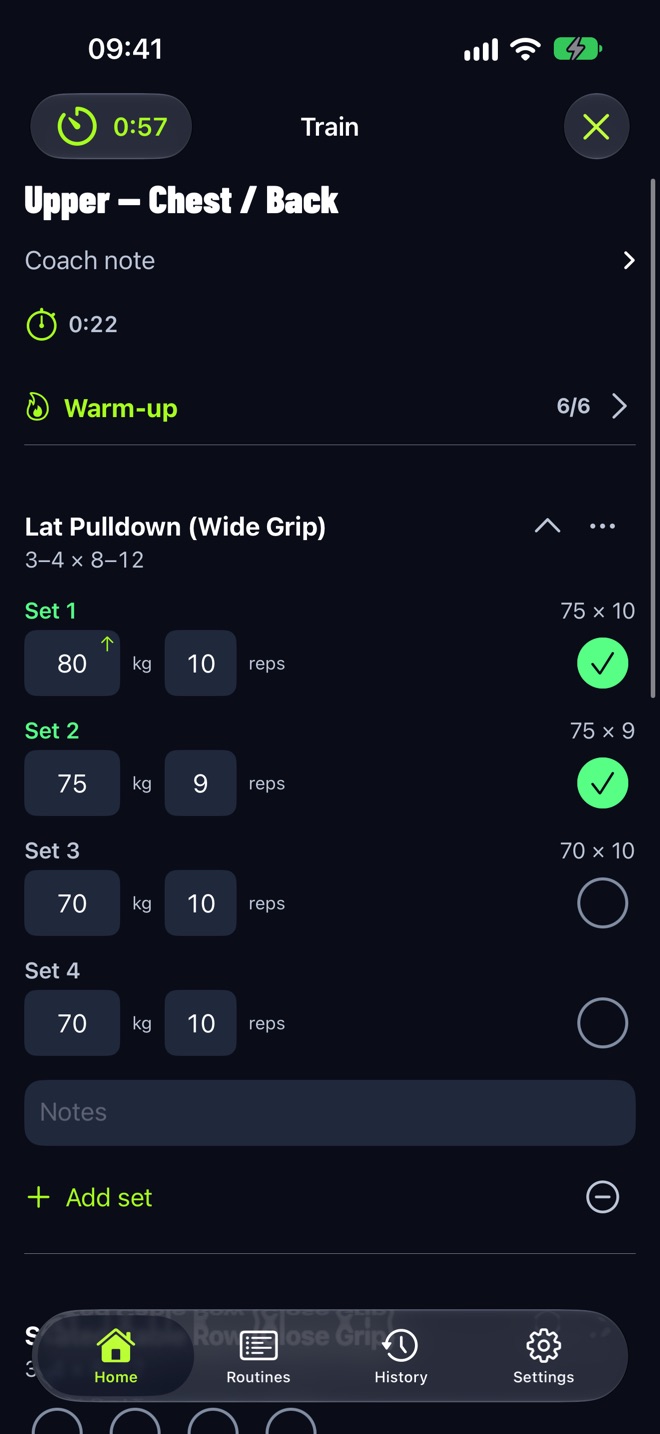
The right-hand number on each row is last session’s matching set, matched by position and set type, so warm-ups are compared with warm-ups and drop sets with drop sets. An up arrow marks a set heavier than last time.
2. Next weight already filled in
LiftLoggr uses double progression: work up a rep range, and when every working set hits the top, the next session’s weight goes up one loadable step (twice the smallest plate on a barbell). Three sessions in a row stuck below the range suggest a deload of about 10 %. After a strong first working set, a chip may offer “Go 102.5 kg for the rest”. Nothing changes without your tap.
3. Warm-ups, drop sets, supersets, RIR
| Need | Where |
|---|---|
| Warm-up sets | ⋯ → Add warm-up sets, or Auto warm-up sets in the routine editor. Built from your first working set. |
| Drop set | Long-press a set circle → Add drop set. About 80 % of the weight, same reps, no rest before it. |
| Superset | ⋯ → Superset with next. Exercises become A1 / A2 and rest comes after the round. |
| Reps in reserve | Settings → Logging → Log reps in reserve, then 0, 1, 2, 3 or 4+ after each set. |
| Notes | The Notes field on every exercise card. |
Step-by-step help: drop sets, supersets, warm-up sets.
4. PRs and estimated 1RM
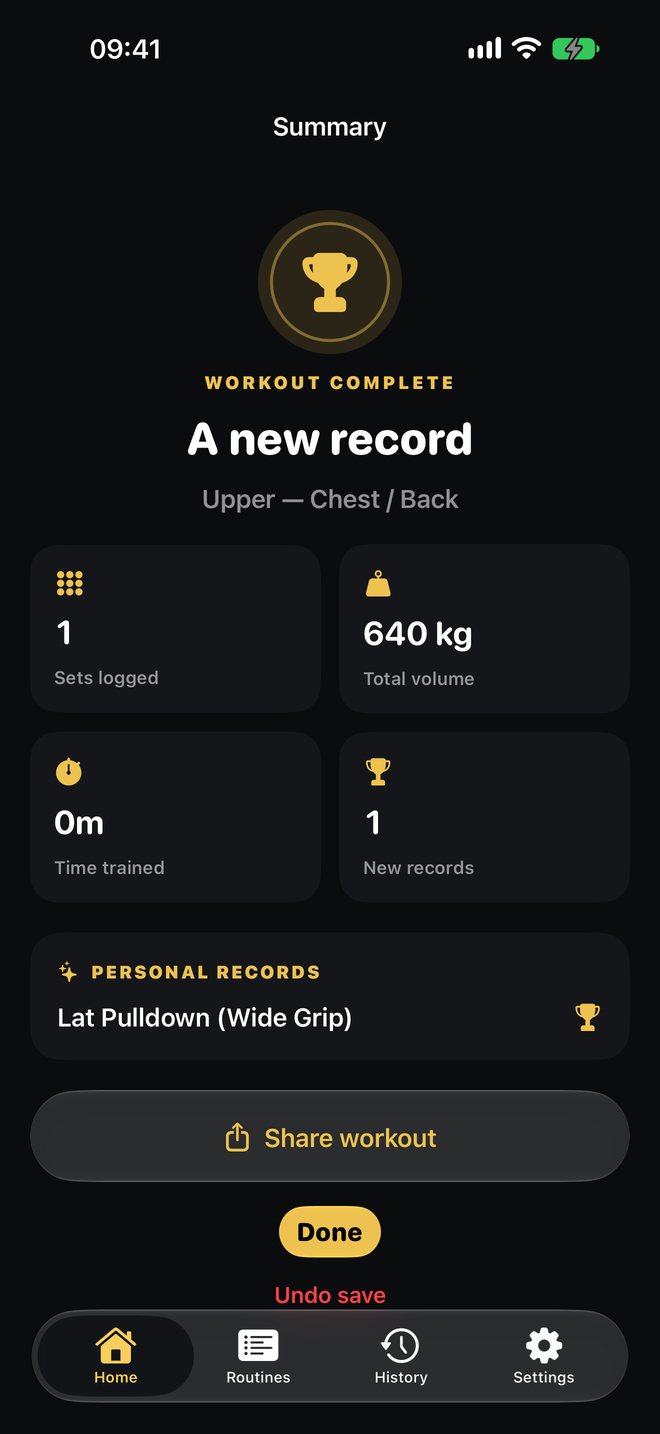
Estimated 1RM uses the Brzycki formula on completed working sets of up to 12 reps. Beat your previous best for a lift and the summary shows A new record. Your first session is the baseline, not a PR.
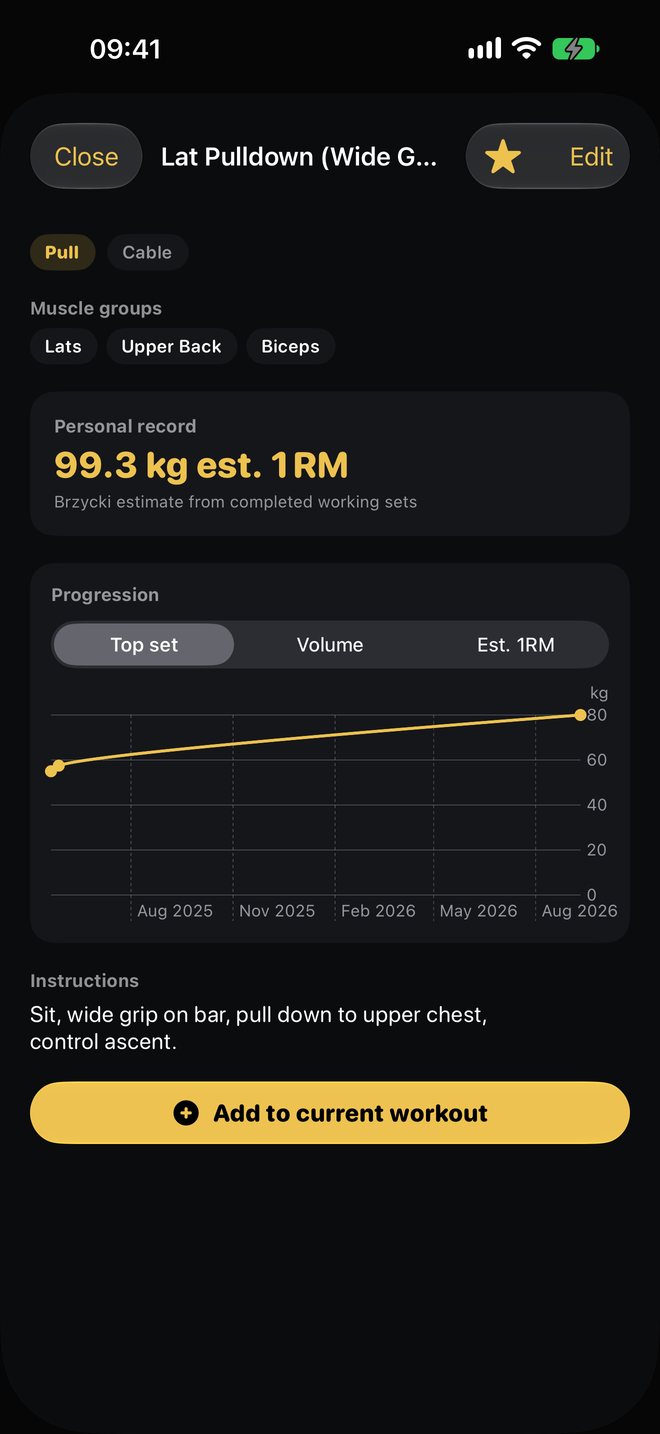
5. History you can read
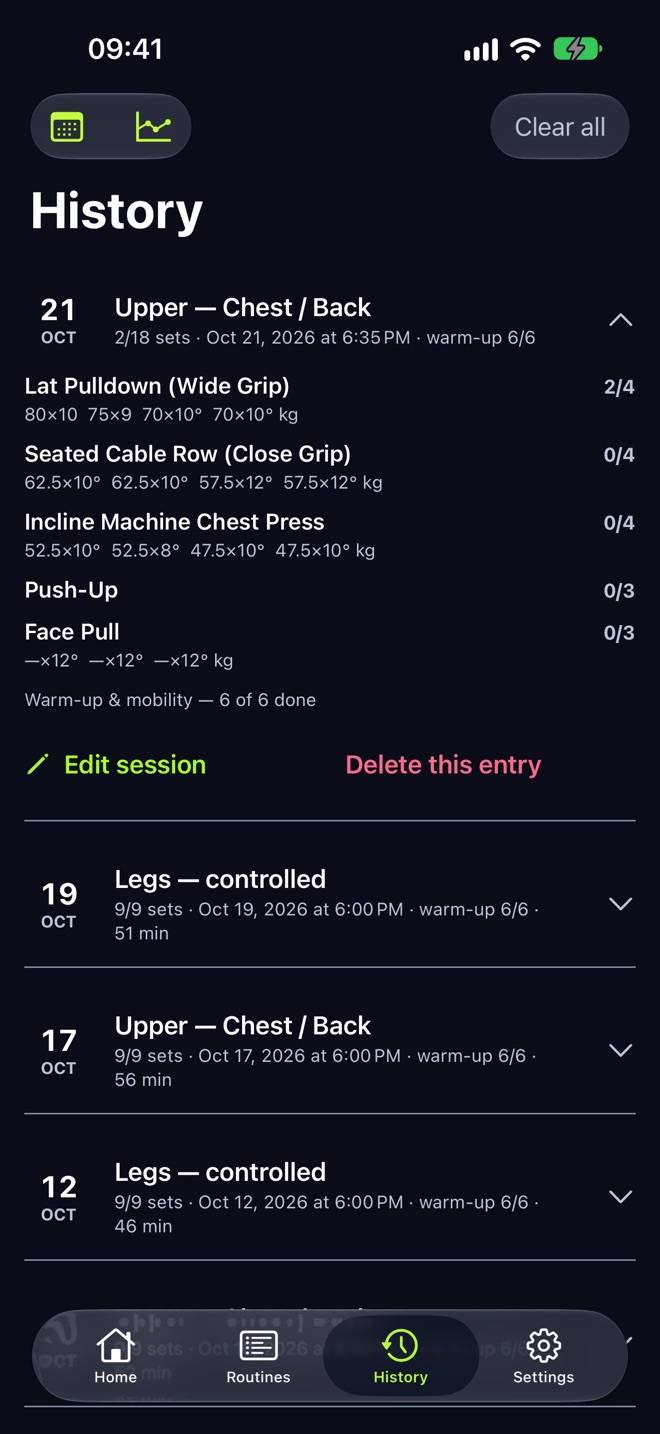
History lists each session with every set as weight × reps; a D marks a drop set. Switch to the calendar to see training days, or tap Edit session to fix a typo after the fact.
What a logged session looks like
An example push day in LiftLoggr’s set notation (kg, weight×reps, D for a drop set; A1 and A2 are a superset):
| Exercise | Sets |
|---|---|
| Bench Press | 80×8 · 80×8 · 80×7 · 62.5×10 D |
| A1 Incline Dumbbell Press | 26×10 · 26×10 · 26×9 |
| A2 Seated Cable Row | 55×12 · 55×12 · 55×12 |
| Triceps Pushdown | 30×12 · 30×12 · 30×11 |
With a 6–8 rep range, next session’s Bench Press is pre-filled at 80 kg with last time’s 80 × 8 beside set 1. Get 8, 8, 8 and the session after that starts at 82.5 kg with the default plates.
What it doesn’t do
No demo videos, no coach chat, no social feed, no RPE (RIR instead), no cardio, no body-weight tracking. It logs lifting, fast, and keeps the record on your phone. See the offline workout tracker for where your data lives.
For the method behind the log, read how to track workouts.
Questions
What is the fastest way to log a set?
Tap the set's circle. LiftLoggr fills each set from last session (with double progression applied), so if you lifted the target, one tap logs it and starts the rest timer. Long-press the circle for +1 rep, −1 rep or a weight step.
Does LiftLoggr show what I lifted last time?
Yes. Every set row shows last session's matching set, for example 75 × 10, with an arrow when today's weight is heavier or lighter.
How does LiftLoggr calculate PRs?
By estimated 1RM using the Brzycki formula on completed working sets of 12 reps or fewer. A session that beats your previous best for an exercise is flagged as a new record on the summary.
Can I log RPE?
LiftLoggr logs reps in reserve (RIR) instead of RPE. Turn on Settings → Logging → Log reps in reserve, then tap 0, 1, 2, 3 or 4+ after each set.
Can I log cardio or body weight?
No. LiftLoggr is a strength log: weight × reps, sets, rest. It doesn't track cardio, HIIT, body weight or measurements.