Key takeaways
- 01No account, no sign-up, no LiftLoggr server.
- 02Logging, rest timer and Apple Watch work with zero signal.
- 03Workouts stay on your iPhone; optional sync goes to your own iCloud.
- 04Export history as CSV or a full JSON backup you can restore.
- 05One honest exception: anonymous usage counts, with an off switch.
On this page
LiftLoggr is a gym log that works with no internet and no account. Every set you log is written to your iPhone first; nothing waits on a server, because there isn’t one.
Basement gyms, steel buildings, airplane mode between sets: the app behaves the same. Below is exactly what works offline, what leaves the phone and how to get your data out.
What works with zero signal
| Action | Needs internet? |
|---|---|
| Start a routine, log weight × reps, check sets | No |
| “Last time” beside each set, pre-filled next weights | No |
| Rest timer, Lock Screen Live Activity, Dynamic Island | No |
| Apple Watch: check sets, edit weight and reps, rest countdown | No. The watch talks to your iPhone directly. |
| History, calendar, PRs, estimated 1RM, charts | No |
| Export a CSV or JSON backup to Files or AirDrop | No |
| iCloud sync between your devices | Yes, when available. Logging carries on and sync catches up later. |
| Buying or restoring a purchase | Yes. Apple’s App Store handles it. |
The exercise library (about 500 lifts with text instructions) ships inside the app. Nothing is downloaded mid-workout.
Proof, screen by screen
1. No account, anywhere
There is no sign-up screen, no email field and no LiftLoggr login. The first-run screens end on “Your data is yours.” with four lines: No account. Stays on your phone. Export anytime. Optional iCloud sync, in your own account.
2. Sync goes to your iCloud, not ours
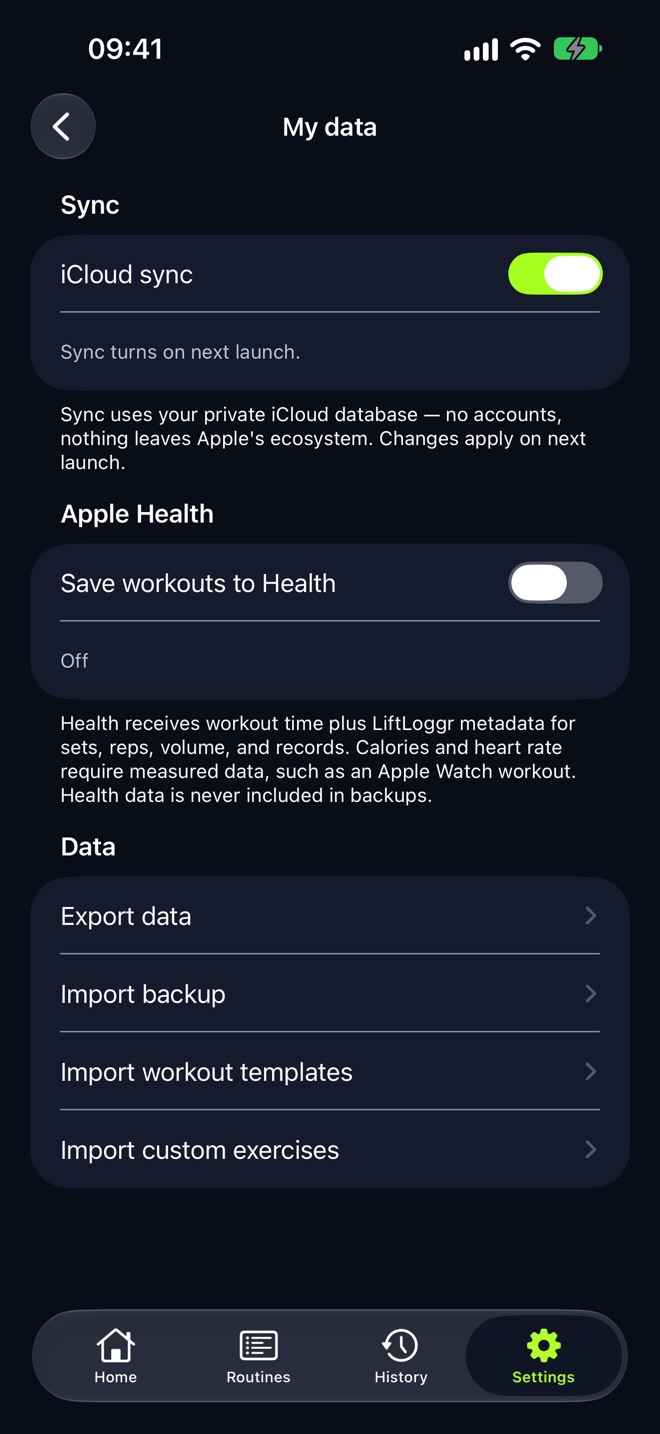
Settings → My data → iCloud sync. The footer says it plainly: “Sync uses your private iCloud database — no accounts, nothing leaves Apple’s ecosystem.” Sync is on by default when your iPhone is signed in to iCloud. Turn it off and the status line reads “Local only. Your data stays on this device.”
3. Export is one tap and never locked
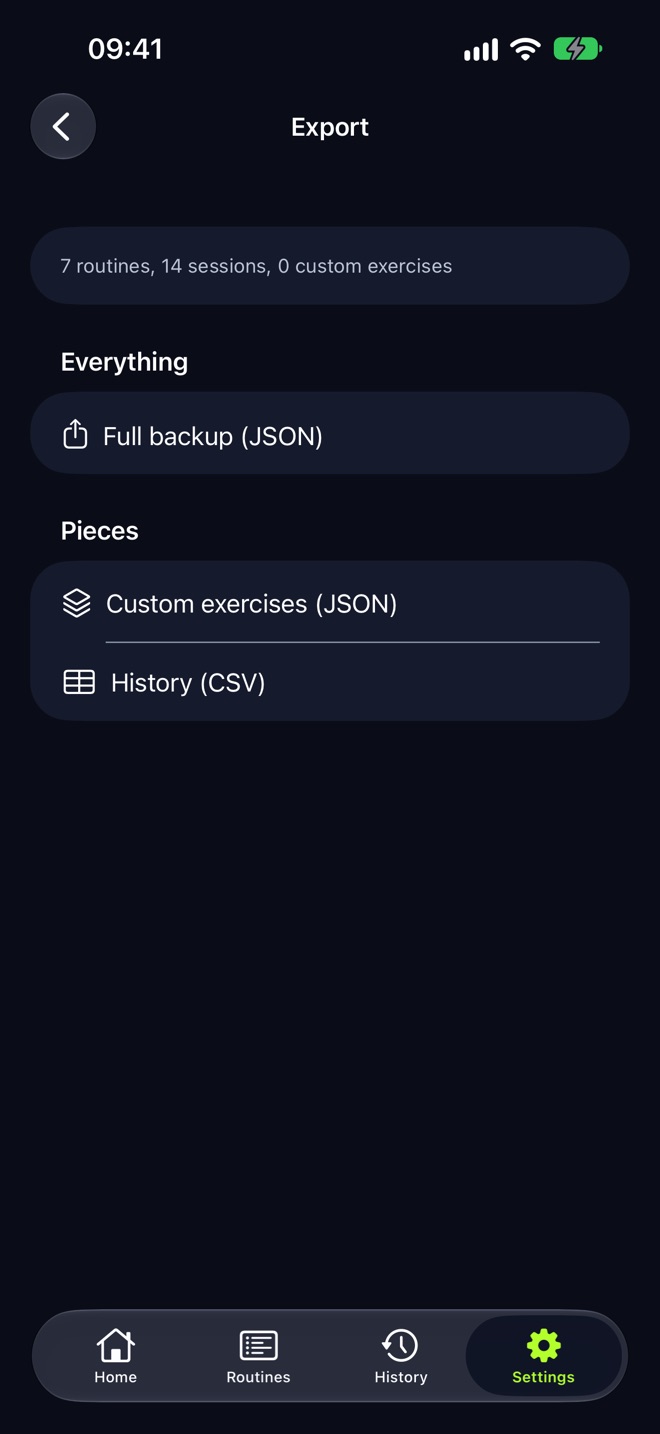
- Full backup (JSON): routines, history, custom exercises, favorites, remembered rest times and settings.
- History (CSV): one row per set with date, routine, exercise, weight, unit, reps, warm-up flag, set type, RIR and superset letter. Opens in Numbers, Excel or Google Sheets.
- Custom exercises (JSON).
CSV is export only. To move your data back in, restore the JSON backup: Settings → My data → Import backup, then merge or replace. Full steps: export and restore a backup.
4. The training loop runs on the device
The rest timer starts when you check a set and counts down on the Lock Screen, in the Dynamic Island and on Apple Watch. All of it is local. See the rest timer.
What leaves your phone, exactly
| Data | Where it goes |
|---|---|
| Workouts, routines, notes, history | Your iPhone. With iCloud sync on, also your private iCloud database. Never to LiftLoggr. |
| Apple Health | Only if you turn on Settings → My data → Save workouts to Health. Health data is never included in backups. |
| Anonymous usage counts | The iPhone app sends counts such as workouts started and finished, never weights, reps, notes or Health data. On by default; switch off Settings → My data → Share anonymous usage data. The Apple Watch app and widgets send nothing. |
| Purchases | Apple. Your Apple Account is the receipt. |
We don’t claim zero data. We claim no account, and your workouts stay on your device unless you send them to your own iCloud.
Paying without an account
LiftLoggr is free today. LiftLoggr Pro arrives with the December update, and everyone who installs before then keeps the whole app free for good.When LiftLoggr Pro arrives, purchases go through your Apple Account, so there is still nothing to sign up for. Data export and backup restore are never locked: the paywall carries “Export my data” and “Restore a backup” links.
What it doesn’t do
No web dashboard, no social feed, no coach chat, and no importing other apps’ CSV files. LiftLoggr is iPhone and Apple Watch today; the Android app is coming to Google Play in early 2027.
Who it’s for
Lifters who train 3 to 6 days a week, log between sets with one thumb, and want the logbook to belong to them. If you also want a no-subscription comparison, read workout apps without a subscription. If you’re moving data between apps, start with how to export workout data.
Questions
Does LiftLoggr work without internet?
Yes. Logging sets, the rest timer, the Live Activity, history, charts and the Apple Watch companion all run on the device. Only iCloud sync and App Store purchases need a connection, and sync catches up when the signal comes back.
Do I need an account to use LiftLoggr?
No. There is no sign-up, no email and no LiftLoggr login. Open the app and log. Sync, if you want it, uses the iCloud account already on your iPhone.
Does LiftLoggr collect any data?
Your workouts, routines, notes and Health data never go to LiftLoggr. The iPhone app sends anonymous usage counts, such as workouts started and finished, and never weights, reps or notes. Turn it off in Settings → My data → Share anonymous usage data.
What happens to my workouts if I lose my phone?
With iCloud sync on, they come back when you install LiftLoggr on a new iPhone signed in to the same Apple Account. Without sync, restore from a JSON backup you exported earlier.
Can I get my training history out?
Yes, any time: Settings → My data → Export data gives a full JSON backup and a history CSV with one row per set. No plan or paywall state blocks export or backup restore.