Key takeaways
- 01Check a set and the rest starts. No second tap.
- 02Countdown on the Lock Screen, Dynamic Island and Apple Watch, with +30s and Skip.
- 03Each exercise remembers its own rest length.
- 04No rest before a drop set; supersets rest after the whole round.
On this page
LiftLoggr starts the rest timer the moment you check a set. The countdown follows you to the Lock Screen, the Dynamic Island and your Apple Watch, so the phone can stay on the bench.
Most gym timers are a separate stopwatch you have to remember to start. This one is wired into the log: it knows which exercise you just finished, how long you rested last time, and whether the next set is a drop set or the second half of a superset.
How it behaves
| Situation | What the timer does |
|---|---|
| You check a working set | Starts the rest for that exercise |
| You check a warm-up set | Starts rest, same as a working set |
| The next set is a drop set | Doesn’t start. Strip the plates and go. |
| You’re in a superset (A1, A2) | Waits until every exercise in the round is checked, then starts once |
| You change the length mid-workout | The exercise you just did remembers it next time |
| Auto-start is off | Tap Rest, then Start rest |
The rest a lifter actually takes varies by lift: 3 minutes after heavy squats, 60 seconds between curls. Per-exercise memory means you set it once. For how long to rest in the first place, read rest between sets.
Proof, screen by screen
1. One sheet for the countdown
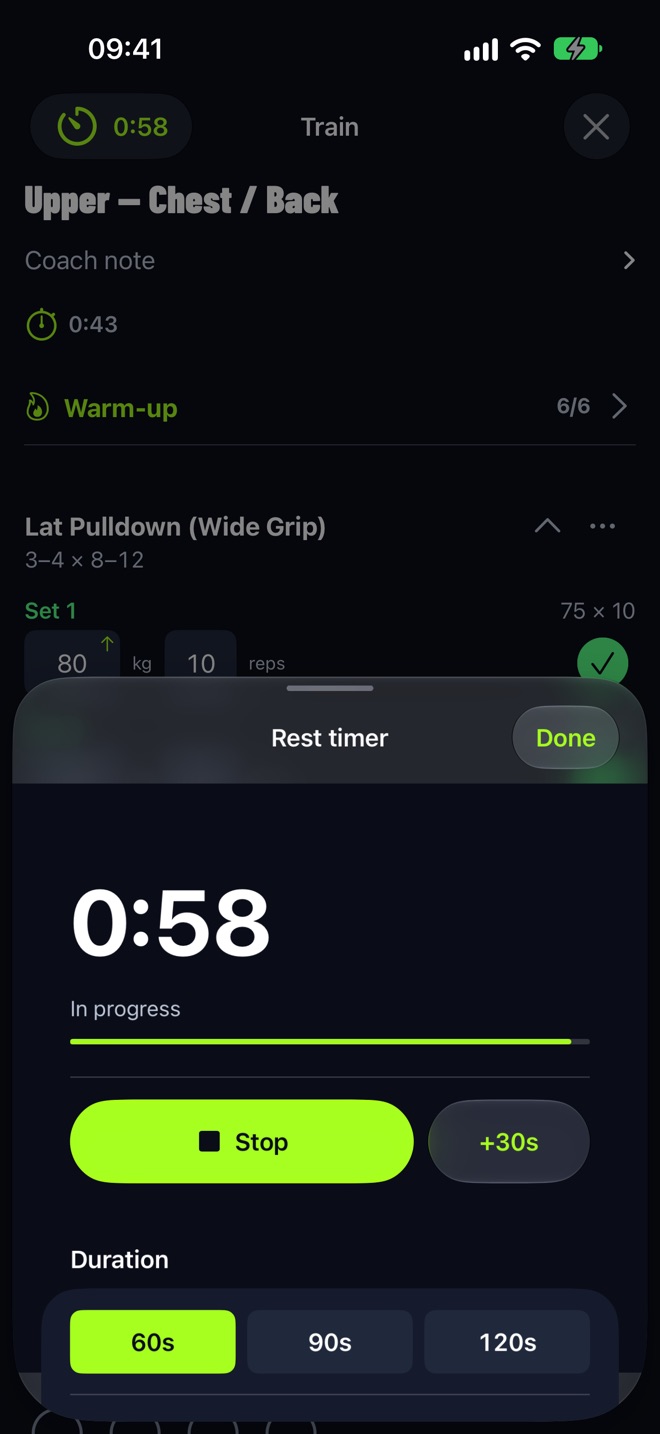
The Rest button on the Train screen turns into the live countdown. Tap it for the sheet: Stop or Start rest, +30s, presets of 60s, 90s and 120s, and − / + buttons in 15-second steps. Auto-start and Sound toggles sit underneath.
2. Lock Screen and Dynamic Island

A Live Activity starts with your first checked set and ends when the session is saved. Expanded, it shows the routine, sets done, the next set, and buttons: Skip and +30s while resting, Check next set when you’re not. You can log a whole straight-set workout without unlocking the phone.
3. Apple Watch
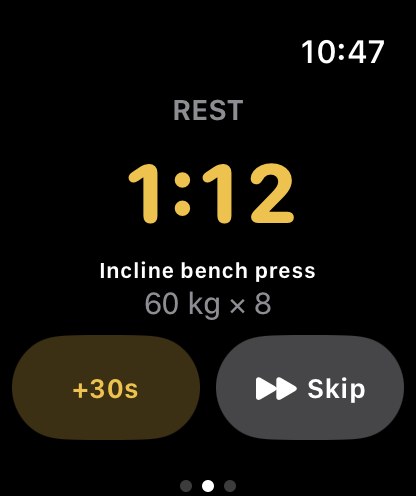
On the wrist: REST, the countdown, the next exercise with its target weight × reps, +30s and Skip. The watch taps you when rest ends. More in Apple Watch workout tracker.
4. Rest alerts and sounds
Allow notifications (Rest timer sheet → Rest alerts → Turn on) and the alert names what’s next, for example “Lat Pulldown is next”, with “Start next set” and “+30s” actions. Settings → Rest timer has the Timer sound (Classic, Forge, Plate or Bell), Sound and Haptics.
5. Siri, widgets and Control Center
Say “Start rest in LiftLoggr”, “Add time to my rest in LiftLoggr” (30 seconds by default) or “Skip my rest in LiftLoggr”. The Today widget has a Rest button, and there’s a Rest Timer control for Control Center and the Lock Screen. The full list is in Siri and Shortcuts.
Settings that matter
| Setting | Where | Default |
|---|---|---|
| Default rest | Settings → Rest timer | 60s |
| Auto-start on set check | Settings → Rest timer | On |
| Sound / Timer sound | Settings → Rest timer | On / Classic |
| Haptics | Settings → Rest timer | On |
| Rest alerts | Rest timer sheet | Asks once |
Step-by-step: rest timer settings.
What it doesn’t do
It’s a rest timer for lifting, not an interval or HIIT timer: no work/rest rounds, no EMOM, no cardio tracking. The watch countdown needs the iPhone app running the workout.
Questions
Does the rest timer start automatically?
Yes. Auto-start on set check is on by default: tap a set's circle and the countdown begins with the rest length for that exercise. Turn it off in Settings → Rest timer if you prefer to start rest by hand.
Does the rest timer work on Apple Watch?
Yes. During a workout the watch shows a REST countdown with +30s and Skip, and taps your wrist when rest is over. The watch app is a companion to the iPhone app, which keeps the workout.
Can I see the rest timer on the Lock Screen?
Yes. A Live Activity starts with your first checked set and shows the countdown on the Lock Screen and in the Dynamic Island, with Skip and +30s buttons.
How long is the default rest?
60 seconds. Change it in Settings → Rest timer → Default rest, from 15 seconds to 10 minutes in 15-second steps, or pick 60s, 90s or 120s in the timer sheet.
How does rest work in a superset?
The timer waits until every exercise in the round is checked, then starts once. Between a set and its drop set there is no rest at all.